Quickstart: Docker Compose
Use this guide if you want to run GoRoute and its supporting services together in containers. The stack includes PostgreSQL for persistent data and Redis for shared rate limits and caching. If you only want to try the gateway locally, the standalone quickstart is a lighter path.
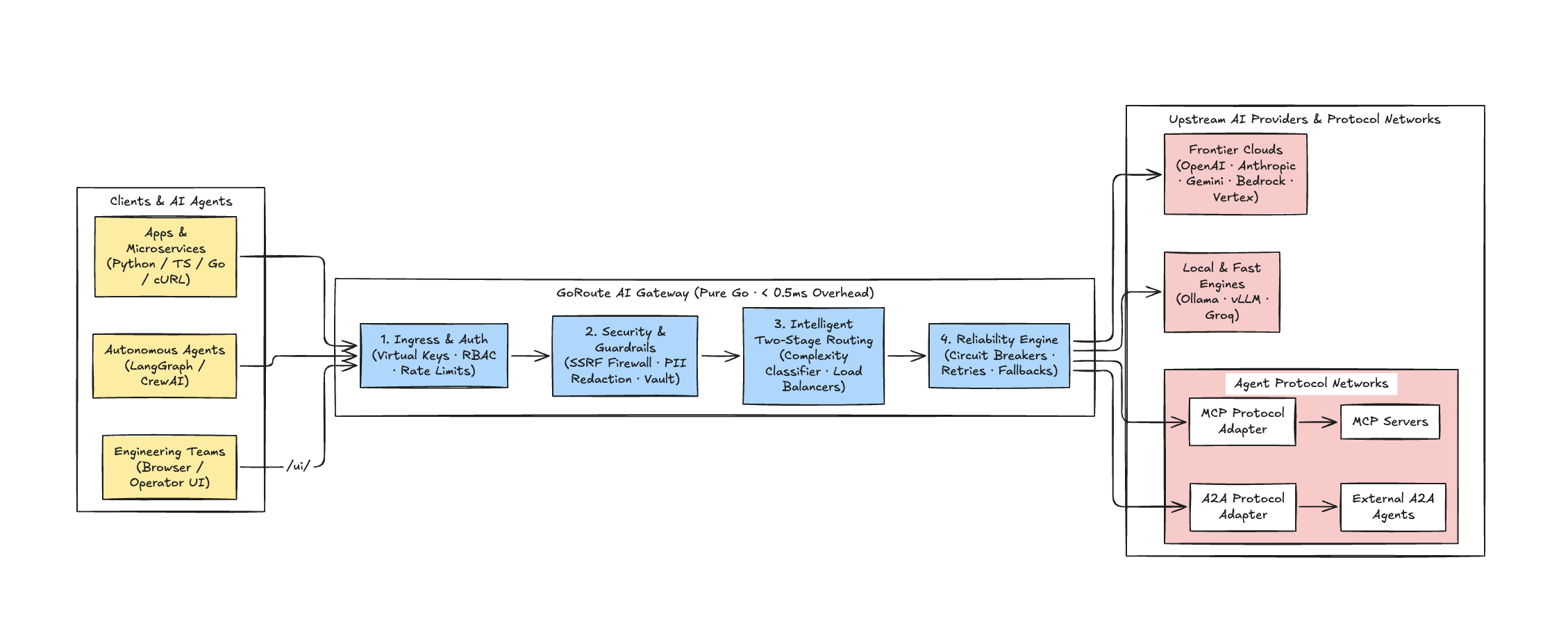
[!NOTE] If you prefer a lightweight single-binary host installation rather than containers, use the one-line shell installer:
1. Prerequisites
- Docker Engine 24.0+ and Docker Compose v2.20+.
- Valid API keys for upstream LLM providers (e.g.
OPENAI_API_KEY,ANTHROPIC_API_KEY,GEMINI_API_KEY) or a local Ollama instance.
2. Clone and Inspect the Compose Stack
Clone the repository and inspect the deployment manifest:
git clone https://github.com/goroute-ai/ai-gateway-go.git
cd ai-gateway-go
The stack is defined in deployments/docker-compose.yml:
version: "3.9"

services:
  gateway:
    build:
      context: ..
      dockerfile: deployments/Dockerfile
    ports:
      - "8080:8080"
    environment:
      - GATEWAY_MASTER_ADMIN_KEY=sk-gw-master-admin-default-key-change-me
      - GATEWAY_STORAGE_MODE=postgres
      - DATABASE_URL=postgres://goroute:goroute_secret@postgres:5432/goroute_db?sslmode=disable
      - REDIS_URL=redis://redis:6379/0
      - OPENAI_API_KEY=${OPENAI_API_KEY:-}
      - ANTHROPIC_API_KEY=${ANTHROPIC_API_KEY:-}
      - GEMINI_API_KEY=${GEMINI_API_KEY:-}
    depends_on:
      postgres:
        condition: service_healthy
      redis:
        condition: service_healthy

  postgres:
    image: postgres:16-alpine
    environment:
      POSTGRES_USER: goroute
      POSTGRES_PASSWORD: goroute_secret
      POSTGRES_DB: goroute_db
    ports:
      - "5432:5432"
    volumes:
      - pgdata:/var/lib/postgresql/data
    healthcheck:
      test: ["CMD-SHELL", "pg_isready -U goroute -d goroute_db"]
      interval: 5s
      timeout: 5s
      retries: 5

  redis:
    image: redis:7-alpine
    ports:
      - "6379:6379"
    volumes:
      - redisdata:/data
    healthcheck:
      test: ["CMD", "redis-cli", "ping"]
      interval: 5s
      timeout: 5s
      retries: 5

volumes:
  pgdata:
  redisdata:
3. Launch the Stack
Start the gateway, database, and cache containers in the background:
docker compose -f deployments/docker-compose.yml up -d --build
View startup logs to confirm automated database migrations and route registrations:
docker compose -f deployments/docker-compose.yml logs -f gateway
4. Launch the Operator Web UI
Once the containers are running and healthy, open the Operator Web UI in your browser:
http://localhost:8080/ui/
Log in with the configured master admin key:
sk-gw-master-admin-default-key-change-me
[!IMPORTANT] The default development key
sk-gw-master-admin-default-key-change-memust be replaced with a high-entropy secret before deploying to staging or production environments.
The Operator UI gives you complete control over:
- Live multi-provider chat playgrounds with streaming SSE.
- Real-time token consumption, request latencies, and micro-dollar FinOps balances.
- Automated health state machine inspections (
CLOSED,HALF_OPEN,OPEN). - Interactive guardrail policy simulation and PII redaction checks.
5. Send an Inference Request
Execute an OpenAI-compatible request against the running Docker stack:
curl -X POST http://localhost:8080/v1/chat/completions \
  -H "Authorization: Bearer sk-gw-master-admin-default-key-change-me" \
  -H "Content-Type: application/json" \
  -d '{
    "model": "fast",
    "messages": [
      {"role": "user", "content": "Explain containerized microservices."}
    ],
    "stream": false
  }'
6. Verify Health and Distributed Readiness
Verify that both PostgreSQL and Redis are responsive through GoRoute's deep readiness check:
curl http://localhost:8080/readyz
Expected response (HTTP 200 OK):
{
  "status": "ready"
}
7. Teardown
To shut down the stack while preserving data volumes:
docker compose -f deployments/docker-compose.yml down
To purge persistent volumes as well:
docker compose -f deployments/docker-compose.yml down -v
Next Steps
- Consult the Operator UI Runbook for administration workflows.
- Explore the Admin Control Plane API for automated provisioning.
- Learn about Distributed Rate Limiting using Redis Lua scripts.